
Edit Mode
Reshape tonight's show without touching your Ableton arrangement.
Press EDIT in the header to enter Edit Mode. Every change goes into the virtual setlist model and is saved automatically with your project — Ableton's locators and clips are never modified.
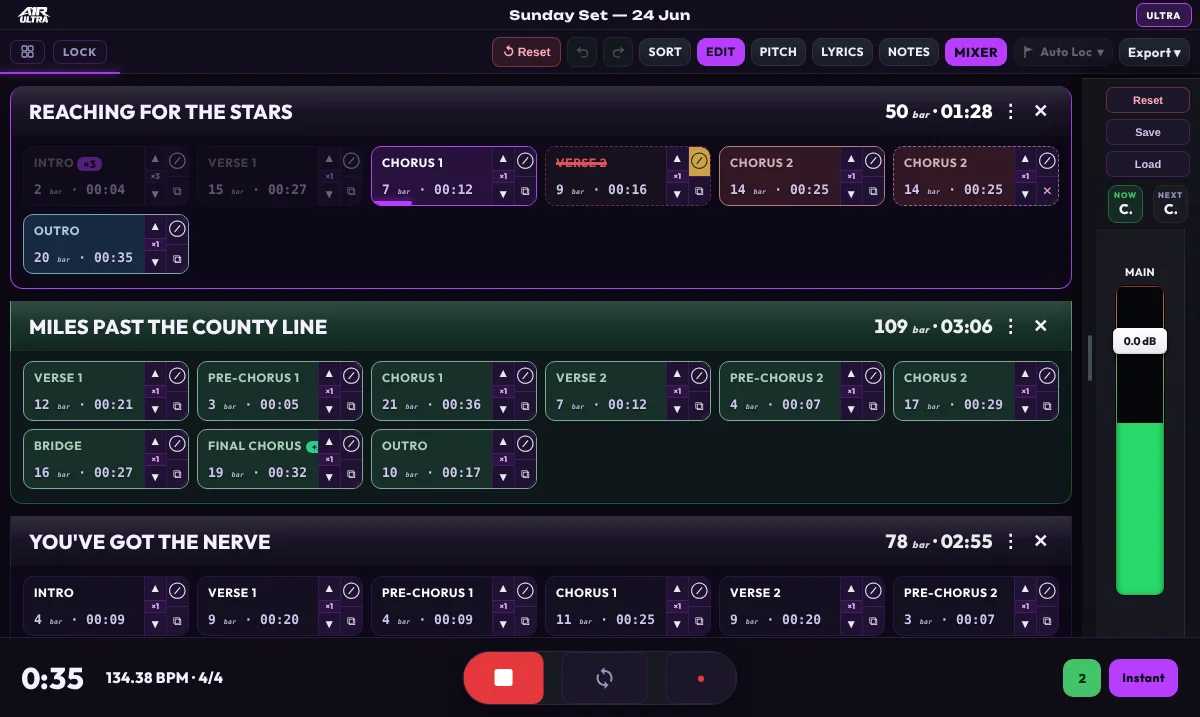
Edit Mode on — every chip grows its own controls, and Reset / Undo / Redo appear in the header.
What you can do
- Reorder sections — drag a section chip by its ☰ grip to a new position. Songs are reordered (and whole songs duplicated or hidden) with SORT; song lanes can't be dragged in Edit Mode.
- Skip ⊘ — mark a section to be jumped over during playback. Tap again to unskip.
- Duplicate ⧉ — creates a jump target: a second entry that plays the same material again at another point in the set. Remove a duplicate with its ✕ button.
- Loop ×N — set a repeat count on a section with the stepper. ULTRA uses Ableton's native loop brace for sample-accurate looping and shows a live countdown badge of the remaining passes; the loop releases automatically on the final pass.
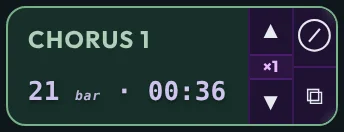
A chip up close: the ▲ ×N ▼ loop stepper, with ⊘ skip and ⧉ duplicate stacked on the right.
Reset, Undo & Redo
- Undo / Redo — buttons in the header, or
Ctrl + Z/Ctrl + Y. Up to 50 steps. - Reset — throws away all virtual edits and returns to the setlist as scanned from Ableton. Reset itself is undo-able.

Reset, Undo and Redo live in the header, just left of the SORT and EDIT buttons.
Duplicates are jump targets, not loops: use ⧉ to play a chorus again later in the set, and ×N to repeat a section back-to-back.